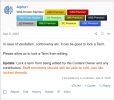
This has been implemented in GS 2.3.2.
This is a permissions based moderator function.
There are two new permissions, one that allows moderators to lock term edits on all terms within a given Glossary and another one that allows moderators to lock term edits on individual terms within a given Glossary while other terms are still able to be edited.
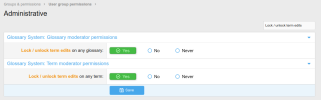 Locking Term Edits for a Glossary
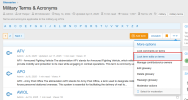
If the viewing user is a moderator with the appropriate permissions, they will see a new link
Lock term edits on terms or
Unlock term edits on terms in the More options dropdown of a given Glossary.
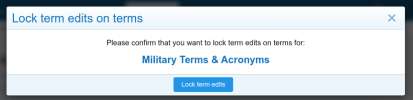
Clicking on the link will launch a confirmation overlay
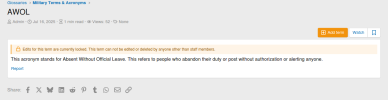
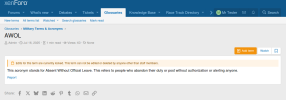
Here is a term within the above Glossary. Contributors and Staff will see a notice on the term that explains that the term is locked and can not be edited or deleted by anyone other than staff members.
In this case, I am staff, so I can still edit or delete.
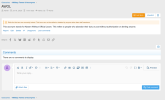
In this shot, I am logged in as Mr Tester, who is a Contributor. Normally they can edit and delete, however, as you can see, they see the notice and the edit and delete links have been removed.
 Note
: When the Glossary is Unlocked, any terms that were individually locked will remain locked. You can't Lock, then unlock a Glossary to bulk unlock 100's of individually locked terms!
Locking Term Edits for an individual Term.
When viewing a term as a moderator, there will be a new link
Lock term edits or
Unlock term edits in the private controls area as shown below. This allows the viewing user to lock term edits on an individual term.
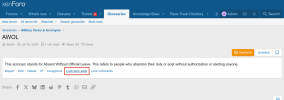
Clicking on the link will launch a confirmation overlay.

And here is what a term with locked term edits looks like when viewing as Staff or Contributor (Owner, Co Owner, Contributor). Its basically the same as when term edits are locked for the entire glossary, however, since term edits for the glossary are not locked, the Unlock term edits link displays for Moderators so that they can unlock the term edits if need be.
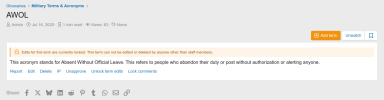
And here you can see that Mr Tester, who is a contibutor, sees the notice and does not have the ability to edit or delete the term.
That's it in a nutshell.
Note: There are no alerts with this. I felt that was extreme overkill and decided to keep this as simple as possible.